
Assets and scanning
Register machines, run SSH scans and read an asset in depth, tab by tab.
The Assets page
Assets is where you register machines that IntelliXBOM scans remotely over SSH. The page shows Total, Reachable and Non Reachable counts and an Asset List (machine name, IP, OS, port, status, Delete action). Use Refresh to re-check the list.
The asset onboarding and first-scan path, end to end.
Register a machine
Click Add Asset and complete the fields:
| Field | Required | Notes |
|---|---|---|
| Organization | Yes | For example Globex Inc., Acme Corporation, Default Organization |
| Machine name | Yes | Display name, e.g. prod-web-01 |
| IP address | Yes | Address the scanner connects to |
| Username | No | SSH user |
| Password | No | Optional when a PEM key is used |
| Operating system | Yes | Linux, Windows, iOS, macOS, Solaris, Unix |
| SSH port | No | Defaults to 22 |
| PEM key file | No | Key-based SSH authentication |
| Scan scope | n/a | Full machine, or Specific directories |
| BOM types to generate | Yes | SBOM, CBOM (required by QBOM), HBOM, QBOM, AIBOM (separate scan) |
QBOM needs CBOM, which is ticked automatically. SBOM, CBOM and HBOM run together in the security scan; AIBOM runs separately and needs at least one AIBOM target.
Asset detail
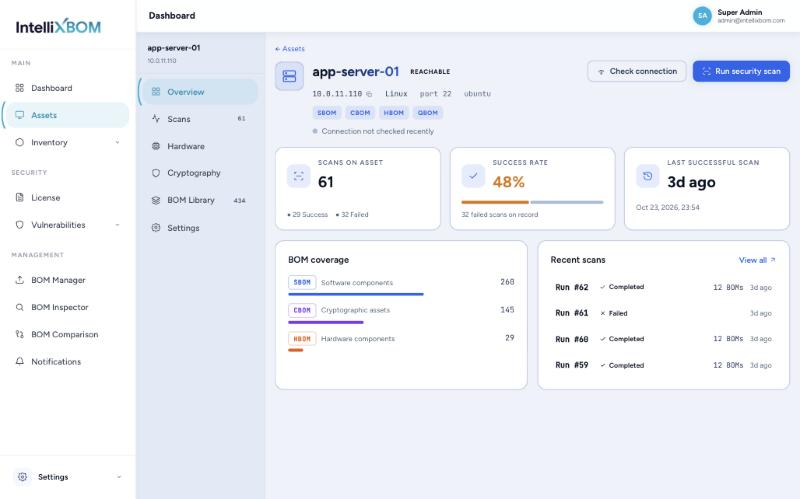
Click a machine name to open it. The header shows status, IP, OS, port, user and enabled BOM types, with Check connection and Run security scan buttons. Tabs:
- Overview: scans on asset (success / failed), success rate, last successful scan, BOM coverage and recent scans.
- Scans: every run with status, start time, duration, BOM counts (S / C / H) and PIDs; filter All / Success / Running / Failed.
- Hardware: HBOM analysis per run, with component counts by category and a Dep Tree view.
- Cryptography: CBOM/QBOM analysis per crypto location, with algorithm, key and certificate counts, a risk badge and a Dep Graph (Graph View and Tree View).
- BOM Library: all BOM files generated for the asset, filterable by type and format (CycloneDX, SPDX).
- Settings: edit connection and BOM generation; add AIBOM targets and scan paths.
Scan runs and the Dep Tree
On the Scans tab, click the arrow at the end of a run's row to open its side panel. A completed run lists every BOM file it produced, filterable by type; a failed run shows the error message and a diagnosis, with Check connection and Retry scan buttons. The BOMs column counts SBOM, CBOM and HBOM files per run (for example 11 / 5 / 1).
The Hardware Dep Tree is a collapsible tree for one HBOM run. Levels run ROOT (the system), DIRECT (category groups such as Motherboard) and TRANS (individual parts: CPU, disks, network interfaces, GPU, BIOS). Use Expand All / Collapse All and search; green marks a direct dependency, purple a transitive one.
Asset settings
- Connection settings › Edit: machine name, IP, username, password, OS, SSH port, and Replace key for the PEM file.
- BOM generation › Edit: tick or untick SBOM, CBOM, HBOM, QBOM, AIBOM.
- Add AIBOM target: a Directory, Docker Image or Docker Container (a container is resolved to the image it was started from).
- Add scan path: absolute directory paths such as /var/log; an empty list scans the whole machine.